Why Outlook Mobile Renders Emails Differently Than Desktop
Why Outlook Mobile Renders Emails Differently Than Desktop - Practical tips from the PasteClean team.
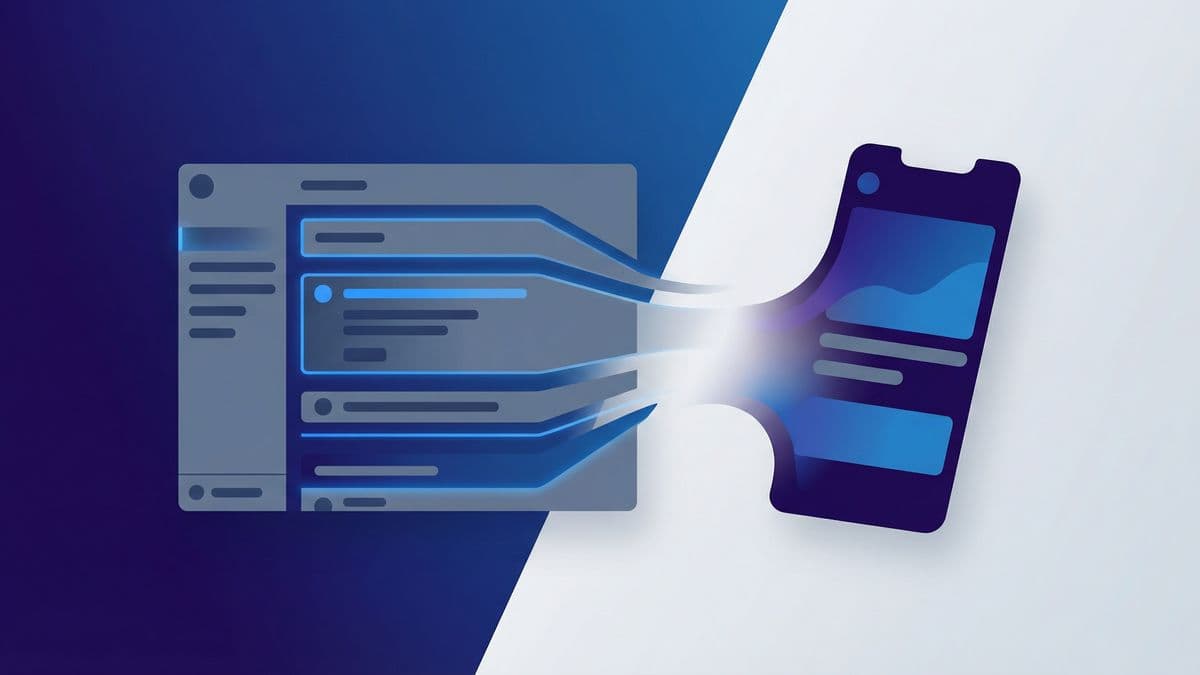
You hit "Send" on a proposal you’ve spent two hours formatting in Outlook on your desktop, confident that the tables align perfectly and your font choices are professional. Then, you check your "Sent" folder on your iPhone while walking to the parking lot, and your heart sinks: the text is tiny, your tables are broken, and there’s a strange gray background behind your paragraphs.
This isn't just bad luck; it’s a fundamental architectural conflict between how computers and phones interpret code.
If you rely on email for professional communication, you cannot assume that what you see on your monitor is what your recipient sees on their phone. Understanding the technical divide between outlook mobile vs desktop is the only way to prevent formatting disasters. Here is exactly why your emails look different across devices and how to engineer your text to survive the transition.
The Tale of Two Rendering Engines
To understand why your email looks broken, you have to look under the hood at the rendering engine—the software component that translates HTML code into the visual email you see.
Outlook for Windows (Desktop) uses Word as its rendering engine. Yes, Microsoft Word. Since Outlook 2007, Microsoft has prioritized the ability to compose emails that look like documents over emails that adhere to web standards. Because of this, Outlook Desktop has extremely limited support for modern CSS (Cascading Style Sheets). It relies on older HTML structures, often converting complex layouts into VML (Vector Markup Language).
Outlook Mobile (iOS and Android), however, is built on modern web technologies.
- Outlook for iOS uses WebKit (the same engine that powers Safari).
- Outlook for Android uses Blink (the engine behind Chrome).
This creates a massive disconnect. You have a desktop client stuck in the early 2000s trying to communicate with mobile clients that behave like modern web browsers. When you format an email on Desktop, you are essentially writing a Word document; when you view it on Mobile, you are viewing a webpage. The translation between the two is rarely perfect.
The "Outlook" Brand Confusion
One of the biggest hurdles in email rendering is realizing that "Outlook" is not a single piece of software. It is a brand name slapped onto several entirely different applications that share almost no code.
If you send an email to a colleague who uses "Outlook," they could be viewing it in:
- Outlook for Windows: The Word-based engine (most restrictive).
- Outlook for Mac: Uses a WebKit-based engine (much more flexible, behaves like Apple Mail).
- Outlook Web Access (OWA): Runs in a browser, supports modern CSS.
- Outlook Mobile: A fully modern app wrapper.
Pro Tip: Never assume that just because you and your recipient both use "Outlook" that you are seeing the same thing. If you are on Windows and they are on an iPhone, you are effectively speaking two different coding languages.
The AI Copy-Paste Problem
This is the most common issue I see in 2024. You generate a draft in ChatGPT, Claude, or Gemini, copy the text, and paste it into Outlook Desktop. It looks fine—maybe a little clean, but readable.
Then you look at it on mobile, and the text is wrapped in a distinct, often dark-mode-incompatible background box.
Here is the technical reason: AI models generate text in Markdown, which the browser converts to HTML for you to read. When you copy that text, you aren't just copying letters; you are copying inline HTML styles, specifically background-color, color, and font-family tags.
Outlook Desktop is aggressive about stripping some of this code or masking it within its own proprietary format. However, Outlook Mobile is a faithful renderer of HTML. If the AI attached a specific background color code (like #f7f7f8 for ChatGPT), Outlook Mobile will display it.
This often results in the "Ransom Note Effect"—where your manually typed intro is one font/size, and the pasted AI content is a different font with a gray background.
Font Inflation and OS Constraints
Mobile operating systems intervene in outlook formatting to ensure readability. This feature, often called "text inflation" or "text autosizing," is designed to prevent users from having to pinch-and-zoom to read tiny text.
If you set a font size of 12px or 13px in your desktop email, iOS might decide that is too small for a high-DPI retina screen. It will automatically override your CSS and bump that font up to 16px or larger.
While this makes the text readable, it wreaks havoc on layouts.
- If you have a table with two columns, and the OS forces the font size up by 30%, the text may no longer fit in the cell.
- This causes words to break aggressively or pushes the second column off the screen, forcing horizontal scrolling.
There is a CSS property called -webkit-text-size-adjust that developers use to control this, but as a standard user composing emails in a rich text editor, you don't have access to that switch. You are at the mercy of the mobile OS.
The Dark Mode Disconnect
Dark mode is not a simple color swap; it is a complex algorithmic inversion of your email's colors. Crucially, Outlook Desktop and Outlook Mobile handle this inversion differently.
Outlook Desktop (Windows):
Often performs a "partial" inversion. It keeps the background dark but tries to preserve the original text colors if they seem high-contrast enough. If you pasted text with a specific black font color (color: #000000) rather than the "automatic" color, Outlook Desktop might force that text to stay black even on a dark background, making it unreadable.
Outlook Mobile: Performs a "full" inversion. It aggressively swaps light backgrounds for dark ones and dark text for light text.
The problem arises with images and copy-pasted backgrounds.
- Transparent PNGs: If you use a logo with a transparent background and black text, it looks great in Light Mode. in Dark Mode on mobile, that black text disappears into the dark background.
- White Backgrounds: If you pasted text that brought a white
background-colortag with it (common from web articles or Google Docs), Outlook Mobile generally respects that tag. You end up with a jarring white block of text amidst a dark mode interface.
Line Height and Vertical Spacing
Have you ever sent an email that looked tight and professional on your screen, but on your phone, it looked like a double-spaced high school essay?
This is a line-height issue.
- Outlook Desktop (Word engine) defaults to a specific line spacing logic based on points (pt).
- Outlook Mobile (Web engine) relies on CSS
line-height, usually defaulting to roughly 1.2 or "normal."
When you hit "Enter" in Outlook Desktop, it creates a paragraph break (<p>). Sometimes, depending on your settings, it creates a line break (<br>). Mobile clients interpret the margins around <p> tags differently than the Word engine does.
If your email client adds margin-bottom: 16px to every paragraph tag—which is common in web-based rendering—and you hit enter twice to create visual space, you end up with massive gaps on mobile that weren't there on desktop.
Before and After: The Hidden Code
To visualize why this happens, look at what the code looks like.
What you see: "Please review the attached document."
What you pasted (The Clean Version):
<p>Please review the attached document.</p>
What you pasted (The "Dirty" Version from an external source):
<div style="color: rgb(55, 65, 81); font-family: Söhne, ui-sans-serif, system-ui; background-color: rgb(255, 255, 255);">
  <span style="font-size: 14px;">Please review the attached document.</span>
</div>
Outlook Desktop might ignore the font-family "Söhne" because it doesn't have it installed, defaulting to Calibri. It might also mask the background color in the editor view.
Outlook Mobile, however, sees that code and executes it perfectly: it renders a specific sans-serif font, forces the size to 14px (or scales it), and paints a white background box behind the text, clashing with the user's dark mode settings.
The Mobile Email Fix: A Practical Checklist
You cannot change the rendering engines of your recipients' email clients. You can, however, sanitize your input to ensure consistency. Here is how to format for safety.
1. Strip Formatting Relentlessly
The number one cause of rendering issues is hidden HTML/CSS carried over from other apps (browsers, AI tools, Word docs).
- The Fix: Never paste directly (Ctrl+V). Always paste as plain text (Ctrl+Shift+V on PC, Option+Shift+Cmd+V on Mac).
- If you have already pasted, select the text and use the "Clear Formatting" button (the A with the pink eraser in Outlook).
- Better yet: Use a dedicated cleaning tool like PasteClean to strip the background styles while keeping bold/italics, so you don't have to re-format everything from scratch.
2. Stick to System Fonts
Don't get fancy. If you use a custom web font, Outlook Mobile might support it, but Outlook Desktop will revert to Times New Roman. If you use a specific Windows font, an iPhone will substitute it with Helvetica or San Francisco.
- Safe List: Arial, Verdana, Georgia, Tahoma, Calibri. These map predictably across devices.
3. Avoid Fixed Widths
In the desktop era, we used to define tables as "600 pixels wide." On a mobile screen that is only 375 pixels wide, a 600px table forces the user to scroll horizontally.
- The Fix: If you must use tables or images, ensure their width is set to percentages (e.g., width="100%") rather than fixed pixels. Outlook Desktop struggles with this, so the safest bet for 1-to-1 emails is to avoid layout tables entirely.
Pro Tip: If you include a large image (like a screenshot), resize it before putting it in the email. Don't insert a 4000px wide image and drag the corners to make it smaller. Outlook Mobile often ignores the "dragged" size and attempts to load the full-resolution image, blowing out the email width.
4. Simplify Your Signature
Complex HTML signatures are the first thing to break on mobile.
- Avoid side-by-side columns in signatures (image on left, text on right) unless you are comfortable with them stacking poorly on mobile.
- Use a vertical hierarchy: Name, Title, Company, Logo (at the bottom). This stacks naturally on narrow screens.
Testing Your Output
Before sending a high-stakes email to a client or executive, you need to verify the outlook formatting.
The simplest way to test is to create a "Burner Loop."
- Draft your email on Desktop.
- Send it to yourself.
- Open it on the Outlook app on your phone (not just the desktop preview pane).
- Switch your phone to Dark Mode and check it again.
If you see strange fonts, varying sizes, or gray boxes, you know you have "dirty" HTML in your draft.
Conclusion
The discrepancy between Outlook Desktop and
Clean your AI text instantly
Paste text from ChatGPT, Claude, or any AI tool and get clean, email-ready formatting in one click.
Try PasteClean Free